

| # | App | Best for | Platforms | Price |
|---|---|---|---|---|
| 1 | Lilo Study Timer | Studying with friends and staying motivated | iPhone, iPad, Android | Free + optional Lilo Premium |
| 2 | Notion | Notes and organising your courses | Web, Mac, Windows, iPhone, iPad, Android | Free (Education Plan free for college students) |
| 3 | Rico | Learning vocabulary fast | iPhone, iPad, Android | Free + Rico PRO |
| 4 | Pablito | A level-by-level vocabulary path | iPhone, Android | Free + Premium |
| 5 | Goodnotes | Handwritten notes and PDF markup | iPad, iPhone, Mac, Windows, Android tablets, web | Free (3 notebooks) + paid plans |
| 6 | Google Calendar | Deadlines and study blocks | iPhone, iPad, Apple Watch, Android, web | Free |
| 7 | Khan Academy | Free lessons when you are stuck | Web, iPhone, iPad, Android | Free |
| 8 | Photomath | Step-by-step math explanations | iPhone, iPad, Android | Free + Photomath Plus |
| 9 | Desmos | Graphing and checking your math | Web, iPhone, iPad, Android | Free |
| 10 | Grammarly | Cleaner essays and emails | Windows, Mac, browser extension, iPhone, iPad, Android | Free + Grammarly Pro |
Disclosure: Lilo, Rico and Pablito are made by our studio, Pado Apps, and they sit near the top of this list. Rico and Pablito are here because they cover languages, which Lilo does not. Every app is described by what it does best, and facts about the other apps come from their own websites or store listings, checked in October 2026.
There are thousands of study apps, and most students download four or five, use them for a week and give up. The problem is rarely the app. It is that each app only does one job, and nobody tells you which jobs you actually need covered.
So this list is organised by job. Studying well comes down to a few things: actually sitting down to study, keeping your notes and courses organised, planning your week, getting help when a topic will not click and (for many students) learning a language. Below are the best study apps for each job in 2026, with what they do for free, what costs money, and who should skip them.
Quick picks: the best study app for each job
- Getting yourself to study, and keeping it up: Lilo Study Timer, with live study rooms and challenges with friends
- Typed notes and course pages: Notion
- Languages: Rico for vocabulary, Pablito for a path through CEFR levels
- Handwritten notes on a tablet: Goodnotes
- Deadlines and study blocks: Google Calendar
- Understanding a topic you are stuck on: Khan Academy
- Seeing every step of a math problem: Photomath
- Graphs and checking your math: Desmos
- Essays and emails without mistakes: Grammarly
How we picked these study apps
Every app here had to clear the same bar:
- It does one study job really well. We would rather list a great notes app and a great calendar than one app that does both badly.
- A student can start for free. Every app below has a free version or is free. Where something important costs money, we say so.
- It runs on the devices students carry. Phone first, with tablets and laptops noted.
- Facts come from the source. Features, platforms and prices for every app come from its own website or its App Store or Google Play listing, checked in October 2026. Prices vary by country, so check the store before you pay.
A note on the order: this is not a score out of ten. A notes app and a graphing calculator do different jobs. Lilo is first because motivation is the job most students fail at first, and it is the job Lilo is built for. We make Lilo, Rico and Pablito, and they sit near the top of this list, so read those sections knowing that. Rico and Pablito are only worth it if you are learning a language. If you are not, skip to number 5. For each of our apps we also say plainly what it does not do.
The study app stack: you need two or three, not ten
The students who stick with study apps usually run a small “stack”:
- One app that gets you studying: a timer or a study room.
- One place for notes and plans: a notes app plus a calendar.
- One helper for your hardest subject: lessons, math steps or a writing check.
Add a language app only if you are learning a language. That is it. Every extra app is one more thing to open before you start, and that is exactly when most study sessions die.
1. Lilo Study Timer: best for studying with friends and staying motivated
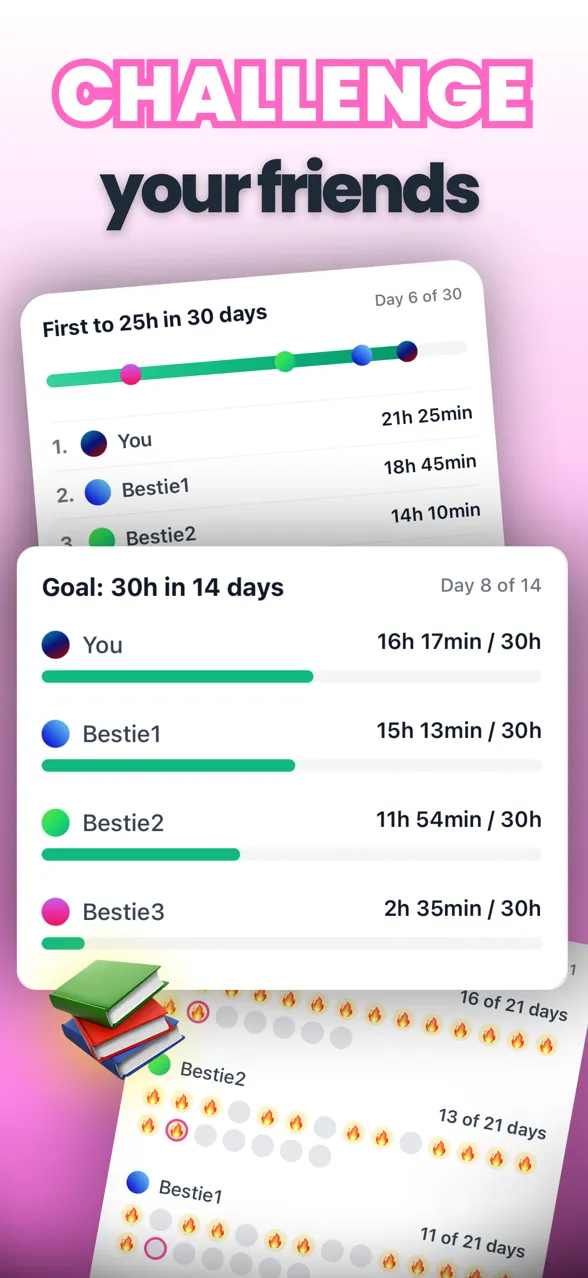 Lilo’s study challenges: a speed race, a shared time goal and a streak with friends.
Most study apps assume you already want to study. Lilo Study Timer is built for the days you do not. Its answer is other people.
You can take a desk in a live 3D study room, like the Classroom, the Café, the Library or the Seaside terrace (plus seasonal rooms), and study next to other students. Everyone has a name tag with their country flag and their live study time. Lilo does not use your camera or microphone, and public rooms have no chat, but you can wave. For your own group, you open a private room with a 6-character code or an invite link, and private rooms have a chat.
Then there are study challenges with friends: a time goal, a speed race, a ranking battle or a streak. A friends feed and rankings show who is putting the work in. Your daily streak can be protected with XP you have earned, and the mascot Lilo changes outfit as you climb 101 levels. Small things, but they are the reason people open the app again tomorrow.
The free Focus timer is a countdown with four scenes (Classic, Coffee, Sleeping cat and Rainy window). There is also a day planner (up to 2 tasks a day free), your own 3D character and some free study music. Lilo Premium adds Stopwatch and Pomodoro modes, 30+ more scenes, the full music library, unlimited challenges and planning, advanced stats and extras for your character and room.
- Best for: students who struggle to start or stay consistent, and friends who want to keep each other going
- Platforms: iPhone, iPad and Android, in 33 languages. No web or PC version.
- Price: free, with optional Lilo Premium
- Ratings: 4.8 on Google Play (about 186K ratings) and 4.7 on the App Store, with 1M+ downloads
- Not for you if: you want an app that locks your phone (Lilo does not block other apps), you study only on a laptop, or you want a free Pomodoro mode
- Get it: Download Lilo free
2. Notion: best for notes and organising your courses
 Notion keeps notes, tasks and course pages in one workspace.
Notion is one flexible workspace for notes, to-do lists, project pages, reading lists and databases. A common student setup is one page per course with lecture notes, assignments and deadlines together, plus a home page that pulls in everything due this week. Notion AI is included as a limited trial on the Free and Plus plans.
The free plan is generous for one person: unlimited pages and blocks, with uploads up to 5MB each and a 7-day page history. Better still, if you are at a college or university, Notion gives you its Education Plan for free, with unlimited uploads, unlimited pages and blocks and a 30-day page history. The rules: your school must be an accredited college or university, your school email must be your account’s main email, you upgrade on desktop or web (not on your phone), and you re-verify once a year. K-12 students are not eligible and stay on the Free plan.
- Best for: university students who like having everything organised in one place
- Platforms: web, Mac, Windows, iPhone, iPad and Android
- Price: free, with the Education Plan free for eligible college and university students. On the US App Store, Plus costs $11.99 a month or $119.99 a year.
- Ratings: 4.8 on the US App Store (about 90K ratings) and 4.6 on Google Play
- Not for you if: you want to start taking notes in the next five minutes. A good setup takes time, and it is easy to spend more time designing pages than studying.
3. Rico: best for learning vocabulary fast
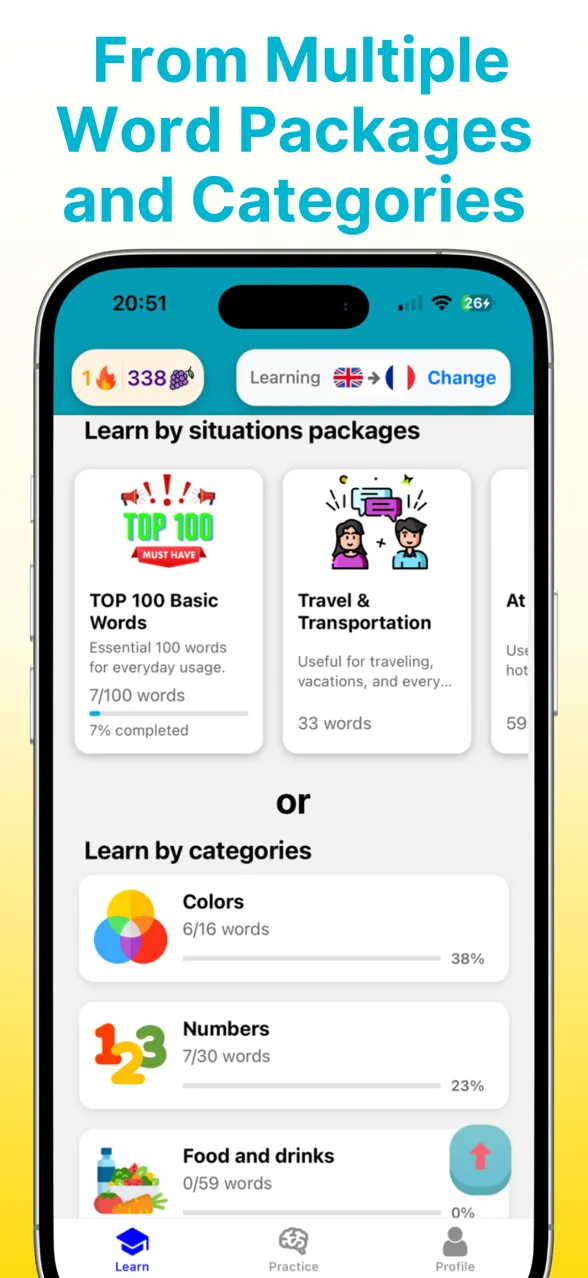 Rico teaches core vocabulary with a swipe-based method and themed word packs.
Rico is a vocabulary app built around one gesture. Swipe right if you know a word, left if you need to review it, and up when you have mastered it. You start with an “Essential TOP 100 words” pack and move on to themed packs like Travel & Transportation, Food & Drinks, Business vocabulary and Everyday situations, so what you learn is useful straight away. Matching games, translation practice and multiple choice keep it varied, spaced repetition brings words back before you forget them, and words come with native speaker pronunciation. You can learn 24 languages.
- Best for: building vocabulary quickly for a class, a trip or an exam
- Platforms: iPhone, iPad and Android
- Price: free, with an optional Rico PRO subscription
- Not for you if: you want grammar lessons or conversation practice. Rico is about words.
4. Pablito: best for a level-by-level vocabulary path
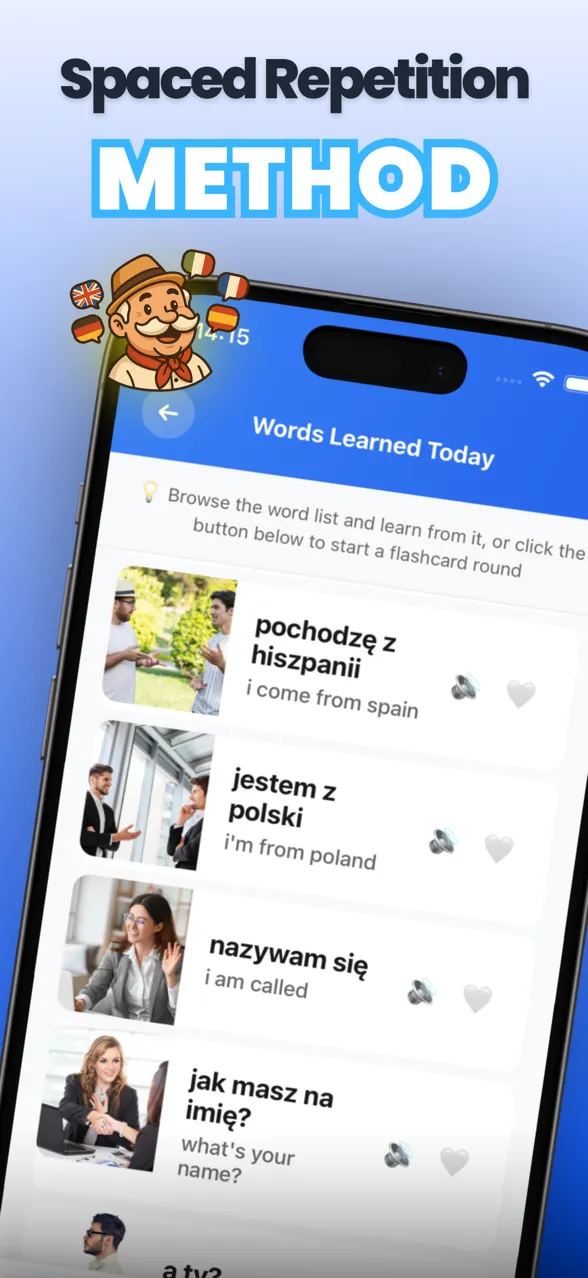 Pablito organises words by CEFR level, with native audio and spaced repetition.
Pablito gives you a clear path through a language’s vocabulary. It is built on the Oxford 5000 word list and organised by CEFR levels from A1 to C1, so you always know what to learn next. Every word comes with native speaker audio, a spaced repetition system schedules your reviews, and exercises mix listening, matching, multiple choice and writing. Words are grouped by real-life topics like travel, restaurants, family, work, shopping and health. XP, achievements and daily streaks keep you coming back, and Professor Pablito guides you through each lesson.
Rico or Pablito? Rico if you want lots of useful words fast. Pablito if you want to know your level and work up through it. One is usually enough.
- Best for: learners who want to know their level and move up it step by step
- Platforms: iPhone and Android
- Price: free, with an optional Premium upgrade
- Not for you if: you are already above C1, or you want to study on an iPad (the App Store lists it for iPhone)
5. Goodnotes: best for handwritten notes and PDF markup
If you take notes with a stylus, Goodnotes is the app to try first. You write and sketch by hand, mark up PDFs like lecture slides and past papers, record audio that stays linked to your notes, and search across typed text and handwriting. Handwriting search is included on every plan, even the free one.
- Best for: iPad and tablet users who think better with a pen
- Platforms: iPad, iPhone, Mac, Windows, Android tablets and Chromebooks, and the web
- Price: free forever with 3 notebooks, 100MB of storage and 20 minutes of audio recording. Essential ($11.99 a year) unlocks unlimited notebooks, 5GB and unlimited audio recording, and Pro ($35.99 a year) adds sync across devices and real-time collaboration. Both have a 7-day free trial.
- Ratings: 4.7 on the US App Store (about 463K ratings)
- Not for you if: you type your notes, or you need more than 3 notebooks and do not want to pay
6. Google Calendar: best for deadlines and study blocks
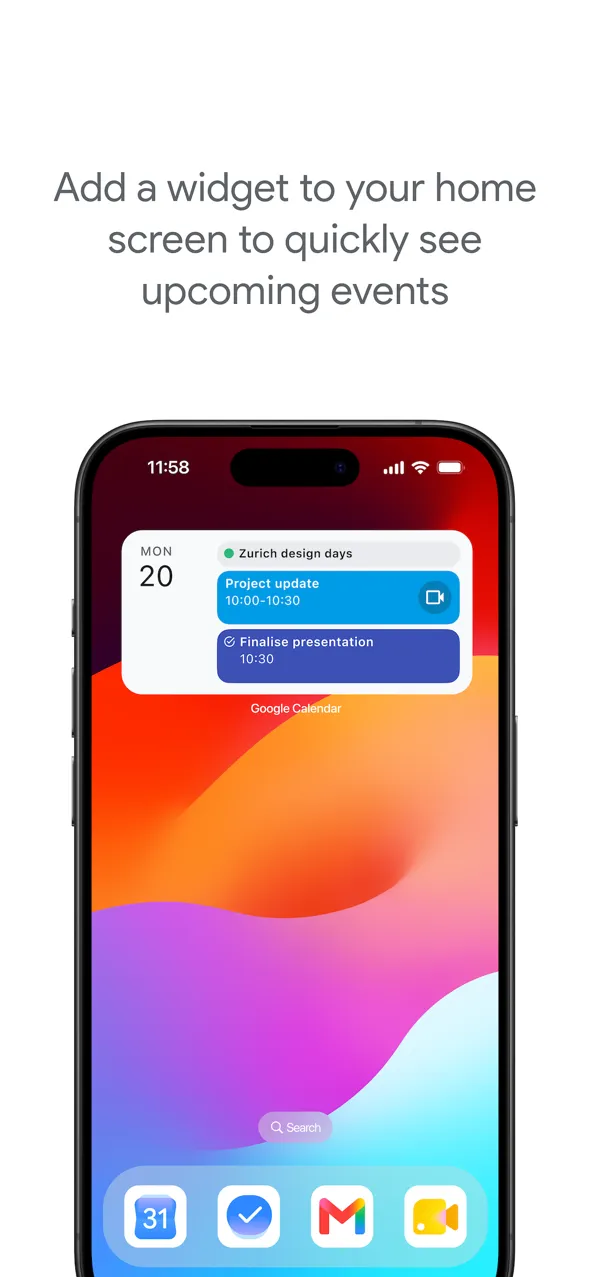 Block study sessions and deadlines, then get a reminder before each one.
Not a “study app” in the trendy sense, but few tools do more for a student’s week. Put every class, exam and assignment deadline in one place, switch between month, week and day views, and get notifications on your phone, in your browser or by email. Tasks sit next to your events, which is handy for “start the essay” reminders, and colour-coding makes it easy to see which subject takes up your week. To time-block, simply create an event for each study session.
Pair it with a weekly planning habit. Our guide on how to plan your study week walks through it.
- Best for: deadlines, exam dates and blocking out study time
- Platforms: iPhone, iPad, Apple Watch, Android and the web
- Price: free
- Ratings: 4.5 on the US App Store (about 132K ratings) and 4.6 on Google Play
- Not for you if: you want school-specific features like rotating timetables or grade tracking
7. Khan Academy: best for free lessons when you are stuck
Khan Academy is a nonprofit whose mission is “to provide a free, world-class education to anyone, anywhere”, and it means it. It has 840+ free courses covering core subjects for K-12 and early college: math, science, English language arts, social studies, economics, computing, life skills and test prep. The app has videos, articles and practice with instant feedback and step-by-step hints, and you can download content to watch offline. When a textbook chapter makes no sense, a short lesson and a few practice questions are often the quickest way to get unstuck.
Its AI tutor, Khanmigo, is free for teachers. Learners and families pay $4 a month or $44 a year.
- Best for: learning or re-learning a topic from scratch, especially math and science
- Platforms: web, iPhone, iPad and Android
- Price: free (Khanmigo is paid for learners and families)
- Ratings: 4.6 on the US App Store (about 112K ratings)
- Not for you if: you need advanced university-level material
8. Photomath: best for step-by-step math explanations
Photomath, now from Google, explains math problems one step at a time. Scan a problem with your camera (even a word problem) or type it into its calculator, and you get the solution with each step explained, sometimes with more than one method to choose from. It covers elementary math, algebra, geometry, trigonometry, statistics and calculus.
The useful way to use it: try the problem yourself first, then check your working against Photomath’s steps to find exactly where you went wrong. Copying the answer will not help you in the test.
- Best for: homework checks and understanding a method your teacher went through too fast
- Platforms: iPhone, iPad and Android
- Price: free for step-by-step explanations. Photomath Plus adds animated tutorials and detailed textbook solutions. Its website lists paid plans at $9.99 a month or $69.99 a year.
- Ratings: 4.8 on the US App Store (about 733K ratings) and 4.3 on Google Play, with 100M+ downloads
- Not for you if: your teacher does not allow solver apps for homework, or you need help outside math
9. Desmos: best for graphing and checking your math
Desmos makes free graphing, scientific, geometry and 3D calculators. The graphing calculator is the one most students know: type an equation and see the graph straight away, with no limit on how many you add. Sliders let you change a value and watch the graph move, which makes things like transformations and parameters click. You can also put data in a table, find a line or curve of best fit, and plot inequalities. The phone app works offline.
- Best for: algebra, functions and anything where seeing the graph helps
- Platforms: web, iPhone, iPad and Android
- Price: free
- Ratings: 4.6 on Google Play (10M+ downloads) and 4.3 on the US App Store
- Not for you if: you want each step of a solution explained. Photomath does that.
10. Grammarly: best for cleaner essays and emails
Grammarly checks your writing as you type. The free plan catches spelling and grammar mistakes, shows you how your tone comes across and includes 100 AI prompts a month. Grammarly Pro adds full-sentence rewrites, tone adjustment, plagiarism and AI-text detection, and 2,000 AI prompts. It works where students write: in Google Docs, Microsoft Word, Gmail and Canvas, through a browser extension and as a keyboard on your phone.
Before you use its AI features on an assignment, check your school’s rules on AI tools. Fixing spelling is almost always fine. Having an AI rewrite your essay often is not.
- Best for: essays, reports and emails to teachers
- Platforms: Windows and Mac apps, a browser extension (Chrome, Safari, Firefox and Edge), add-ins for Word and Google Docs, and apps for iPhone, iPad and Android
- Price: free, with a paid Grammarly Pro plan
- Ratings: 4.7 on the US App Store (about 227K ratings) and 4.3 on Google Play
- Not for you if: you want help with the content of your essay rather than the writing, or your course does not allow writing assistants
Example study app setups
Here is how these apps fit together for different students. Use them as a starting point, not a shopping list.
- High school student: Lilo to get started and study with friends, Google Calendar for homework deadlines, and Khan Academy or Photomath when a math topic will not click.
- University student: Lilo for focus sessions with friends, Notion (free on the Education Plan) for course pages, Google Calendar for deadlines and Grammarly for essays.
- iPad note-taker: Goodnotes for lectures and PDFs, Desmos for graphs, and Lilo on the same iPad for focus sessions.
- Language learner: Rico or Pablito for the language itself, and a daily Lilo session with a friend to keep the habit going.
- Big exam in three months: a Lilo time-goal challenge with your study group, a plan in Google Calendar, and Khan Academy for the topics you are weakest on.
How to make a study app actually stick
Most study apps get deleted because they become one more thing to manage. A few habits change that:
- Install one app at a time. Use it for a week before adding the next.
- Tie it to a time. “Rico on the bus, Lilo at 7 pm” works better than “whenever I can”.
- Start small. Ten new words or one 20-minute session a day is enough to build the habit. A study streak makes it visible.
- Add a person. A friend who can see whether you studied is the strongest reason to open the app again. Our guide on how to study with friends covers how to set that up.
- Delete what you do not use. If an app has not been opened in two weeks, it is not part of your setup.
Which study app should you choose?
Start with the job you are worst at. If you never sit down to study, an app that helps you start matters more than anything else on this list: try Lilo for study rooms and challenges with friends. If your notes are a mess, set up Notion or Goodnotes. If you miss deadlines, put everything in Google Calendar this weekend. If a subject will not click, start with Khan Academy, and add Photomath or Desmos for math.
Then add one more app for your next weakest job, and stop there. Two or three apps you open every day will do more for your grades than ten you opened once.
Looking for more? See our guides on how to stay focused while studying, how to stay motivated to study and the Pomodoro technique for students.
Frequently asked questions
What is the best study app for students in 2026?
It depends on the job. For staying motivated and studying with friends, Lilo. For notes, Notion (typed) or Goodnotes (handwritten). For a language, Rico (vocabulary) or Pablito (a level-by-level path). For deadlines, Google Calendar. For help with a topic, Khan Academy, Photomath or Desmos. For essays, Grammarly. Most students do best with two or three apps, not ten.
What are the best free study apps?
Khan Academy's lessons, Google Calendar and Desmos are free to use. Lilo, Notion, Rico, Pablito, Goodnotes, Photomath and Grammarly all have free versions with optional paid upgrades.
Is Notion free for students?
Notion's Free plan is free for everyone. College and university students at accredited schools can also get the Education Plan for free when their school email is their account's main email. K-12 students are not eligible and use the Free plan.
Which study app helps you stay motivated?
Apps that add other people tend to help most. Lilo has live 3D study rooms, private rooms for friends and study challenges (time goal, speed race, ranking battle and streak), plus streaks and 101 levels where the mascot Lilo changes outfit.
Is using Photomath cheating?
It can be, if you copy the answer. Used well, it shows each step of a solution so you can see where your own working went wrong. Try the problem first, then use Photomath to check it, and follow your school's rules on homework help.
How many study apps should I use?
Two or three: one that gets you studying (a timer or a study room), one place for notes and deadlines, and one helper for the subject you find hardest. Add a language app like Rico or Pablito only if you are learning a language.
Keep reading
 8 Best Back to School Apps for Students in 2026 The 8 best back to school apps for students in 2026: apps to focus, organise your semester, learn a language, meet deadlines and get homework help.
 How to Study With Friends (Online or in Person) Study with friends without it turning into a chat: session rules that work, camera-free study rooms online, and challenges that keep a group going.
 How to Build a Study Streak That Actually Sticks A study streak turns studying into a daily habit. Here's how to start one, keep it alive on busy days, and recover when you slip, without burning out.